
Olympiad Coordinator Registration Guide
Welcome! This guide is for Olympiad Coordinators to assist you in registering yourself and your students.
If you have previously registered as a coordinator, you can login to the Challenge site and proceed from Step 2 below.
Step 1. Register as a coordinator
This step only needs to be completed once, to create an account for yourself. If you already have an account, simply login and proceed to Step 2.
To register:
- Browse to https://challenge.beaver.org.za/admin/
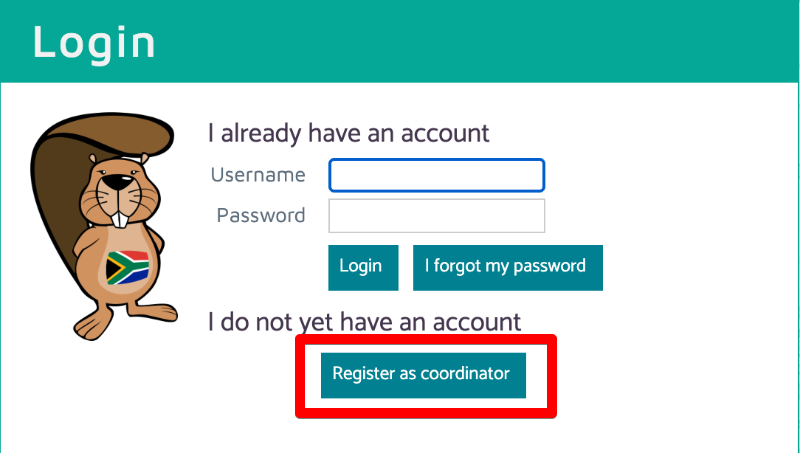
- Click "Register as coordinator"
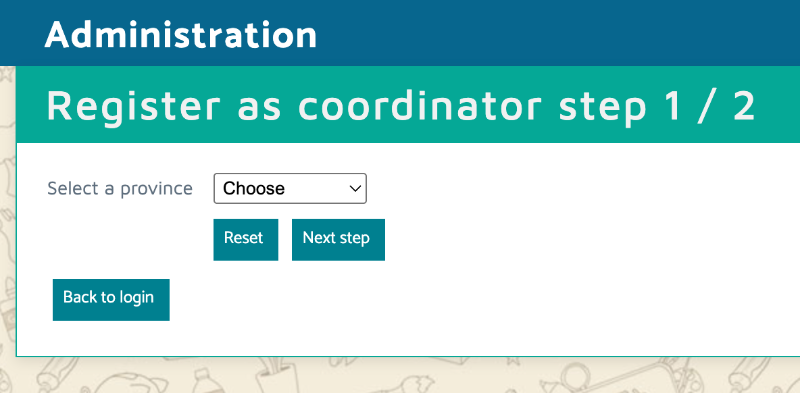
- From the dropdown, select your Province.
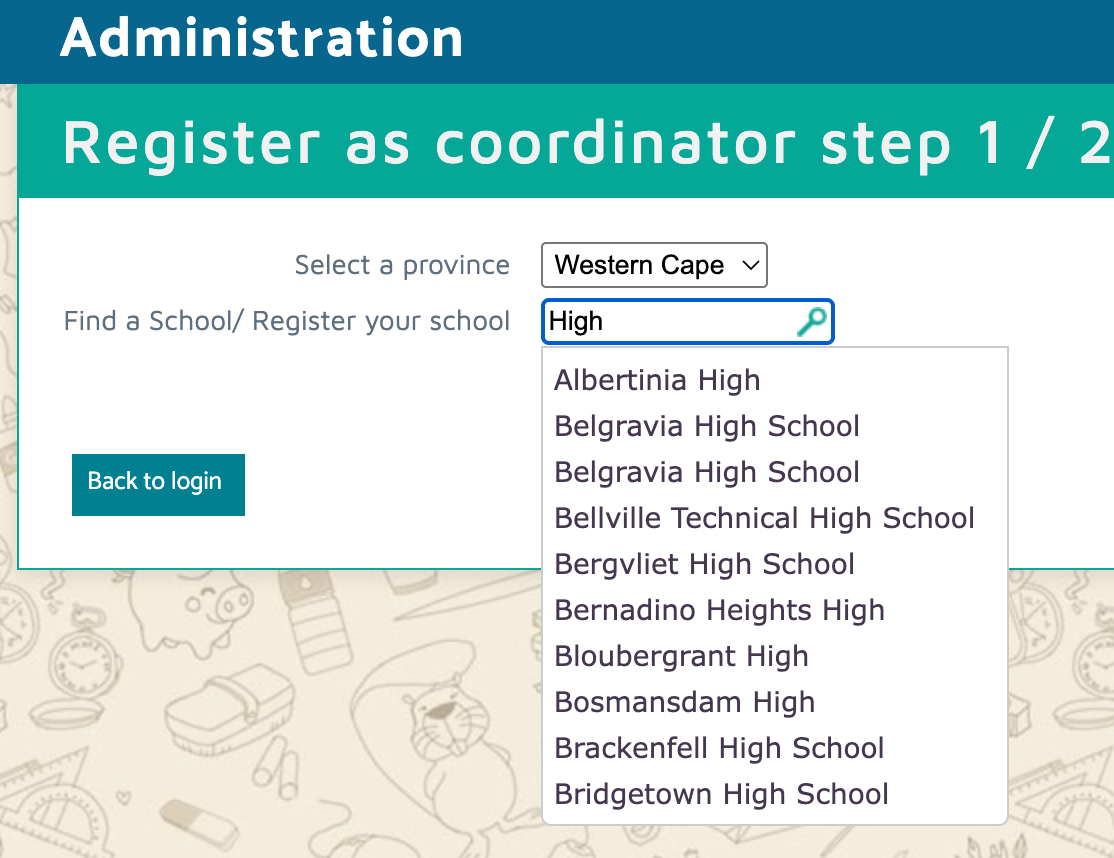
- Enter your School name
- If your school appears in the dropdown list, please select it then click "Next step". Continue to registration step 5.
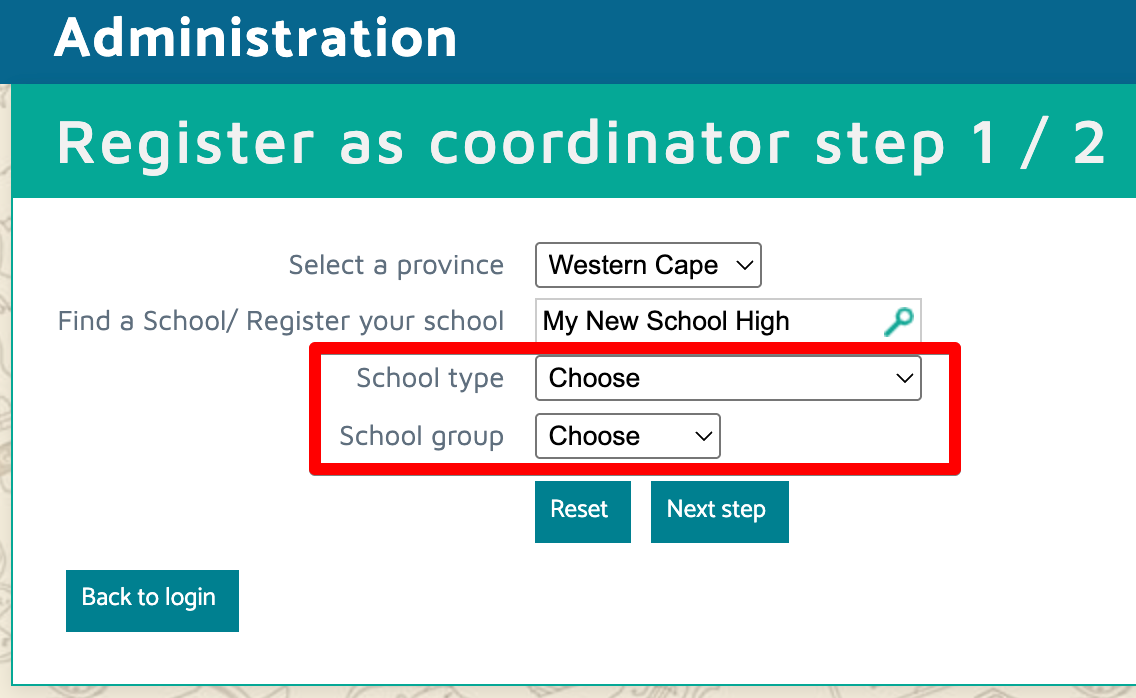
- If your school name does NOT appear in the list, type in the full name of the school and click "Next step".
- From the dropdowns select your School Type and your School Group. Then click "Next step".
- If your school appears in the dropdown list, please select it then click "Next step". Continue to registration step 5.
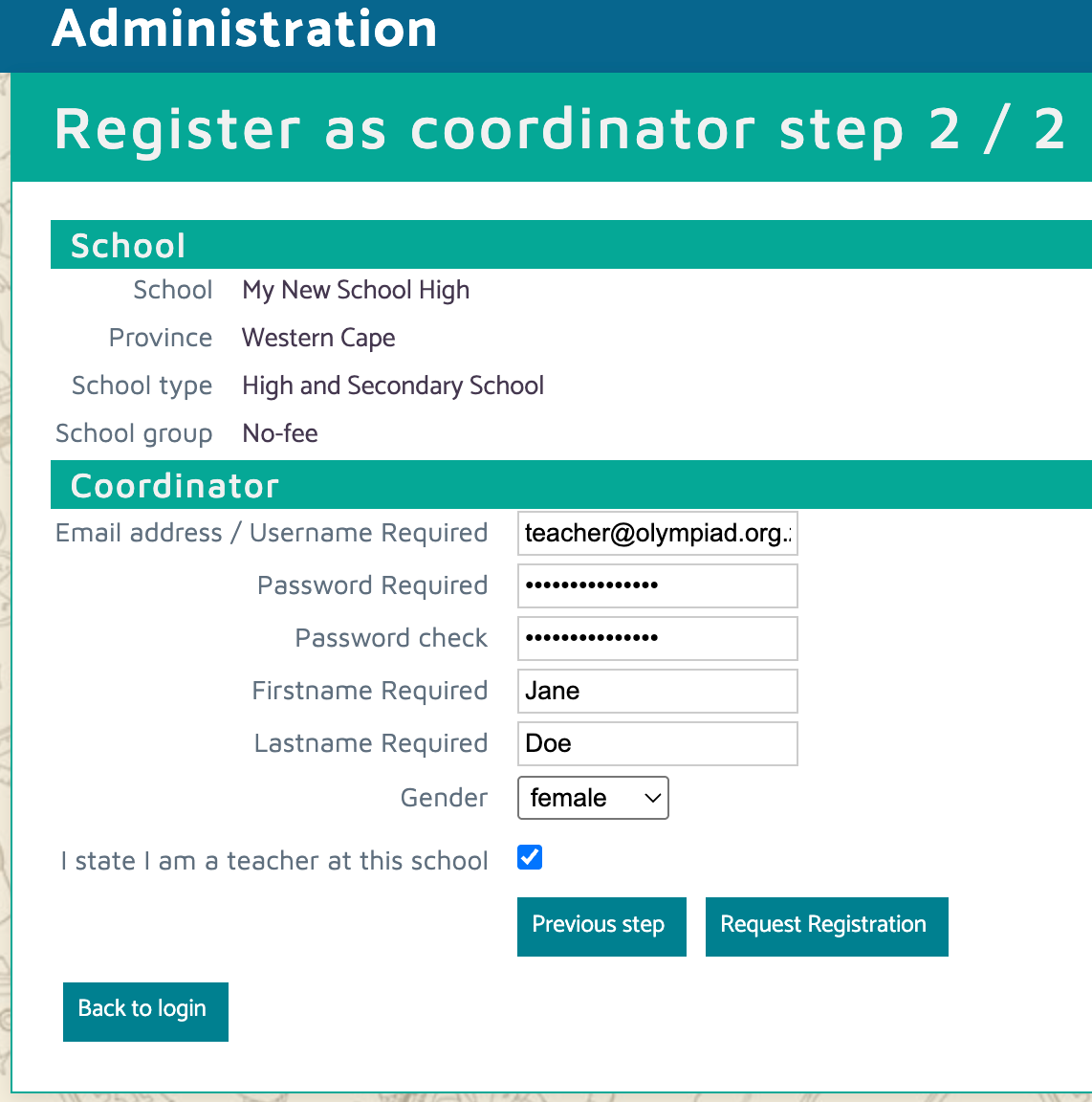
- Fill in the account information with your details (Email address, Password, Name details). Click "Request Registration" when done.
- You will see this confirmation message:
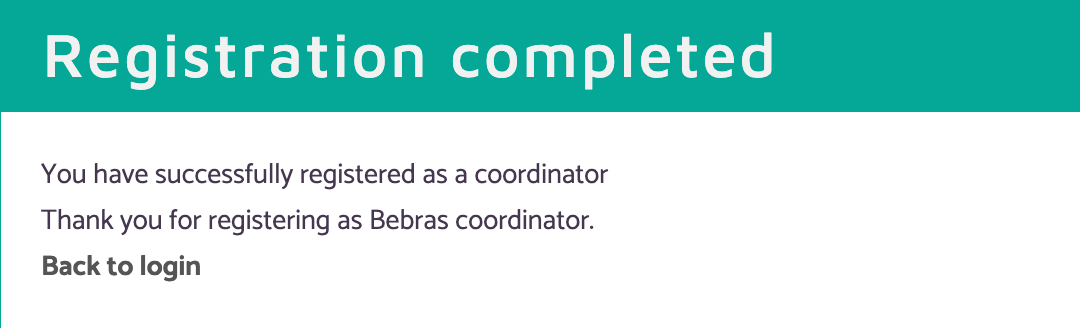
- Your registration will be automatically approved, and your account is ready to login.
Step 2. Login as a coordinator
- Browse to https://challenge.beaver.org.za/admin/
- Enter your username (email) and password, then click "Login".
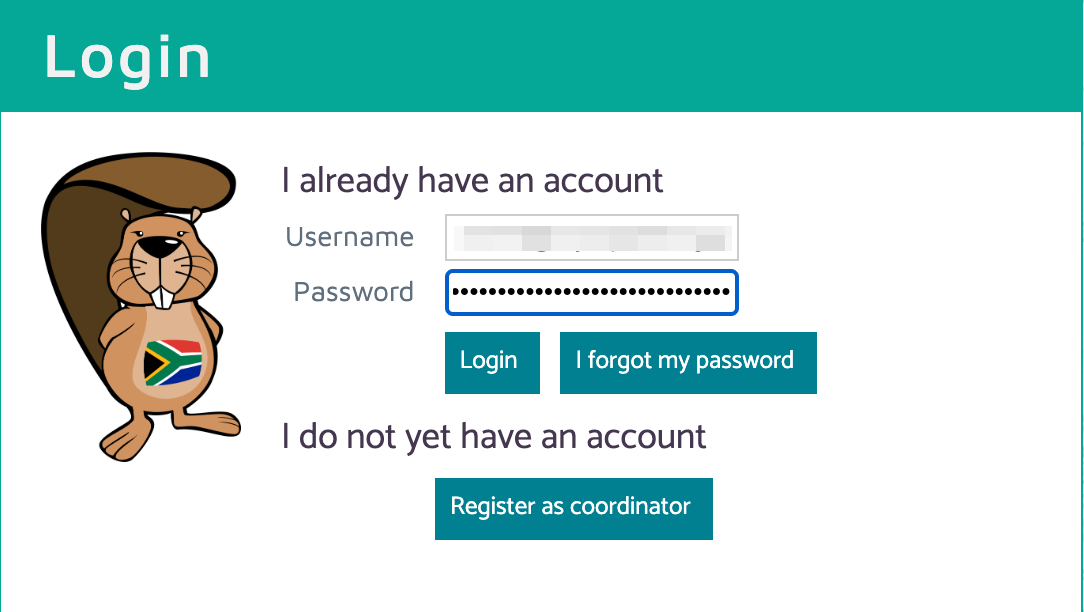
- You may update school details at any time, including the address, phone number, and name.
- You're now ready to create usernames for your learners
Step 3. Create usernames for your learners
Every learner who enters the competition requires their own username and password, which you, as the coordinator, will create. There are two approaches to creating the learner usernames, depending on whether you have acess to the learners' biographical information:
- You upload a spreadsheet with their biographical information. This approach means you need to capture all this information in a spreadsheet, but saves time on the day of the competition. Follow Step 4 below if you want this path.
- Alternatively, you simply tell us how many students will enter and we'll create "Skeleton" users without biographical data. On the competition day, your students will first need to fill in their details when they first login. Follow Step 5 below if you want this path.
The first approach is more popular.
Step 4. Bulk upload for username creation
If you complete this step, Step 5 (Skeleton user creation) below is unnecessary.
To create users via bulk upload, follow these steps:
- Ensure you're logged into the administration site
- Click Documents, then "2026 TS Documentation", then "Student list.xslx", which will download an XLSX document:

- Open "Student List.xlsx" in Microsoft Excel
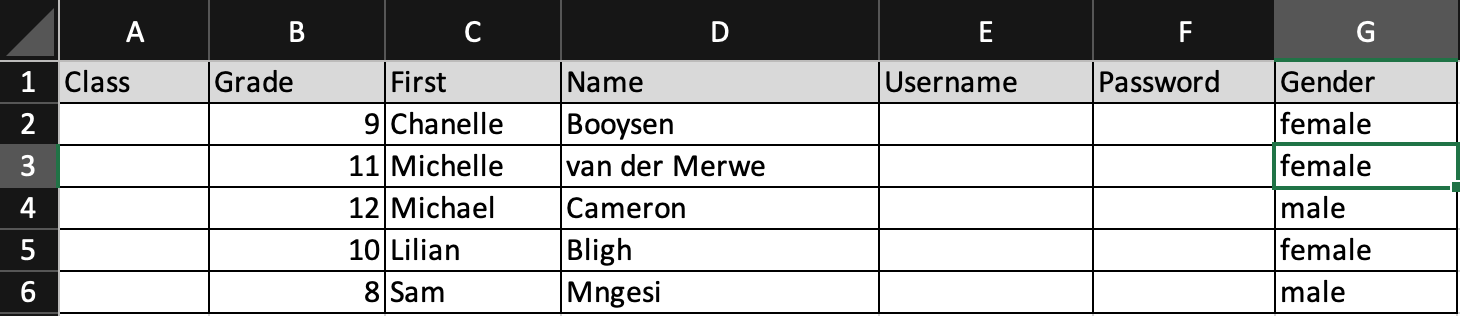
- Add your students, one per row. Make sure to fill in their names, grades, and gender. Do not reorder the columns. We recommend leaving the Username and Password empty, as we'll generate those for you
- Save the file
- Return to the administration site, and click "Import Files"
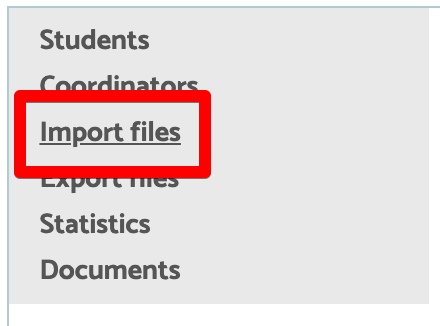
- Click "Drop file here to upload", to open the File Selector. Select your student list XLSX. This will upload the file.
- The file is read and a preview is displayed. Click on the column names to identify which columns show the first names and surnames:
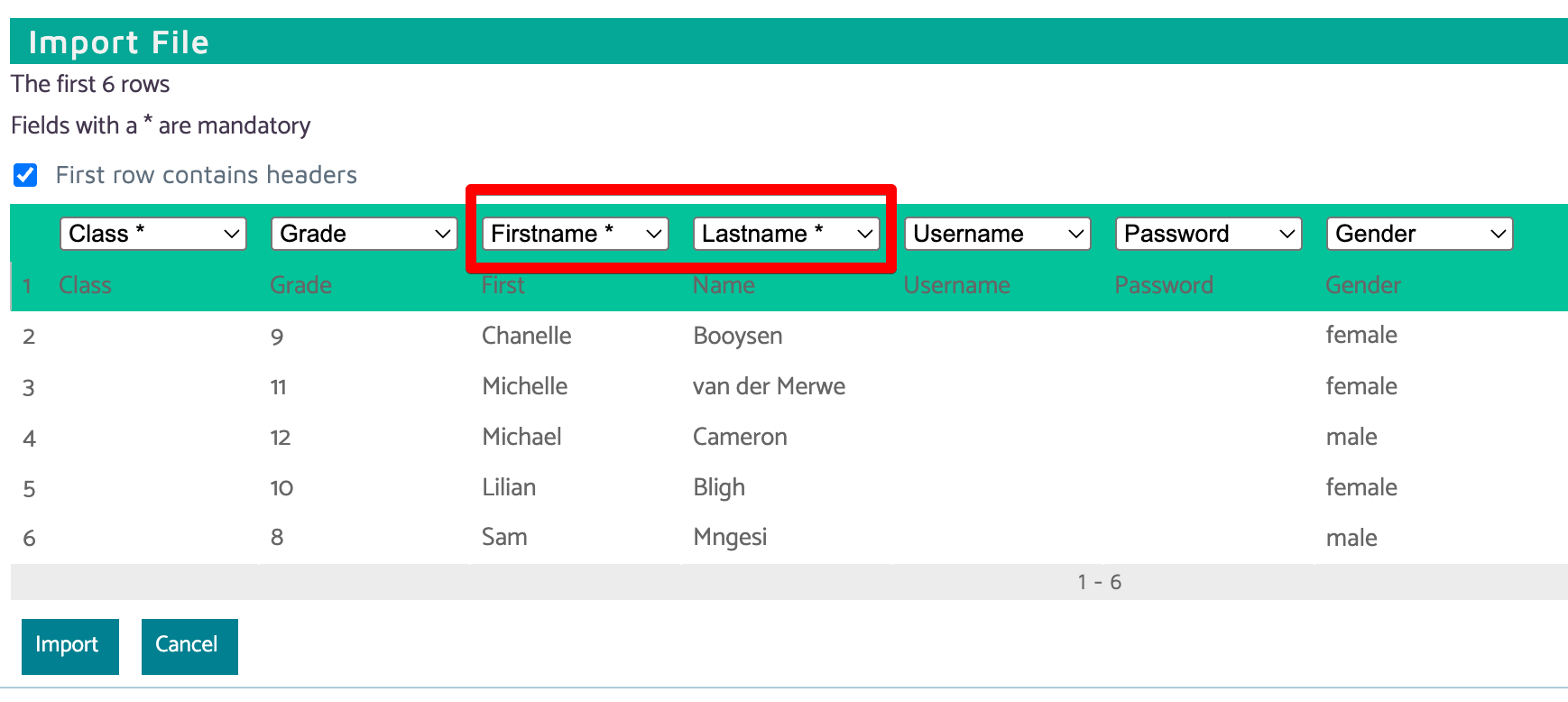
- Click "Import" to complete the importation of learner details. You will receive a confirmation for the number of users imported:
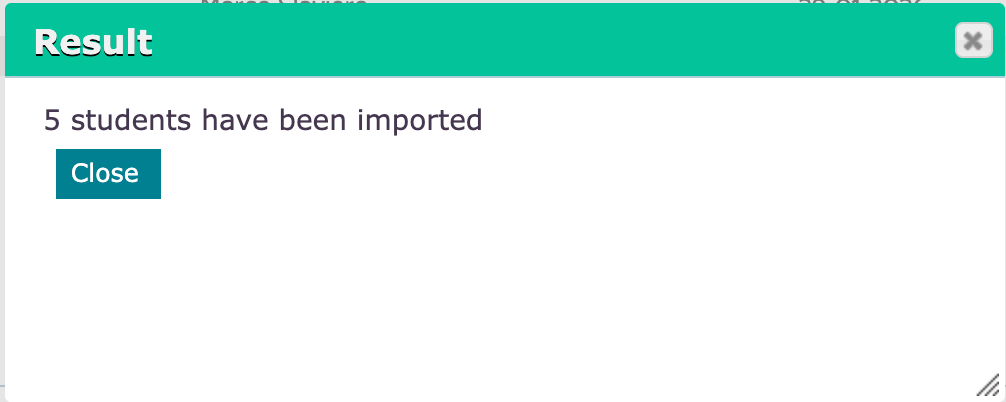
- Your learners now have username and passwords created. To fetch those details, click "Export files" on the left, the click the CSV file name to download the details

- Opening the file, you will see their usernames and passwords have been filled in, as well as the login URL depending on whether they use the English or Afrikaans version

- Congratulations, your learners are now registered and ready for the Talent Search!
Step 5. Skeleton user creation
If you don't have your learner's biographical information at hand, you can instead follow the skeleton user creation process to generate empty accounts which your leaners will fill in, when they first log in on the day of the competition.
To create users via the skeleton route, follow these steps:
- Ensure you're logged into the administration site
- Click "Students" on the left menu, then click the "Create Skeleton Users" button
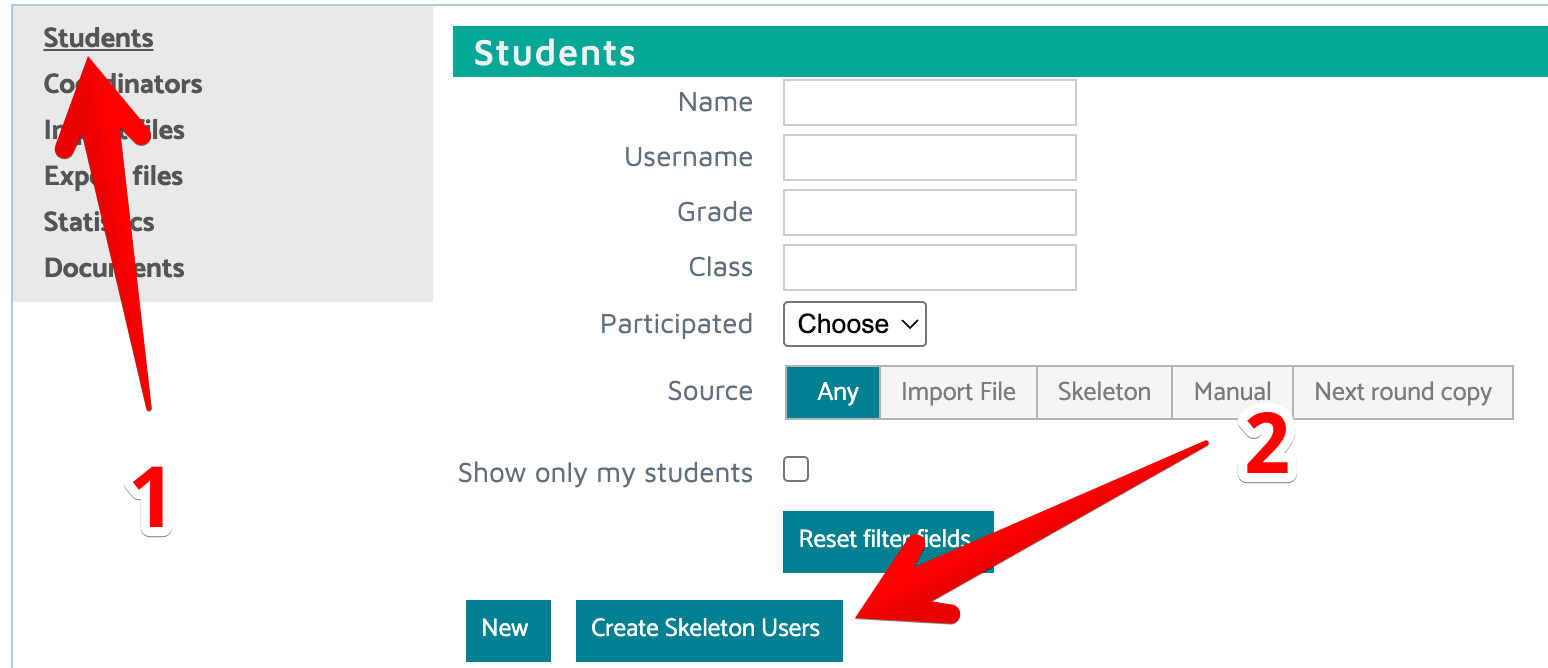
- In the next screen, choose a short prefix for the new usernames, and how many learners to register. We recommend choosing a few letters which represent your school (e.g. its initials). You may add the grade of your learners as well (e.g. 5), but if you have multiple grades you will need to repeat the process for each grade. We recommend leaving the grade field empty, and simply create all your users at once.
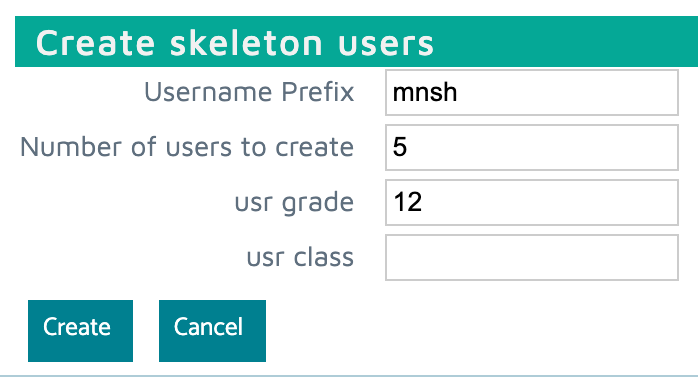
- Click "Create" to create the users, and you will see this screen
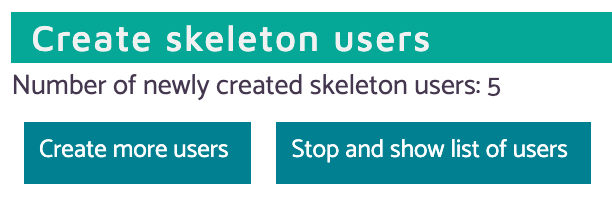
- If you have additional usernames to register, click "Create more users" and repeat the steps. When you're finished, click "Stop and show list of users".
- Click "Reset filter fields" so that you can see all your grades in the list.
- Under the Download section, click "I agree to the rules". This will make the username download accessible.
- Click either "Export CSV" or "Export XLS" to download your learners' credentials

Your skeleton users have now been created!
Step 6. Distributing login details to the learners
Once you've registered your learners and downloaded their login details, you can distribute them to the learners as you wish. You may do this ahead of time, or provide students with their credentials on the day of the competition.
To avoid mixing up user accounts, before starting the competition you should ask learners to check that their name appears on the account, ensuring it belongs to them and not to another participant.
If you created skeleton users, one recommended approach is to assign one skeleton user per learner in a very clear manner, so learners know exactly which skeleton account they should use.
Step 7. You're done!
Good luck with the competition!